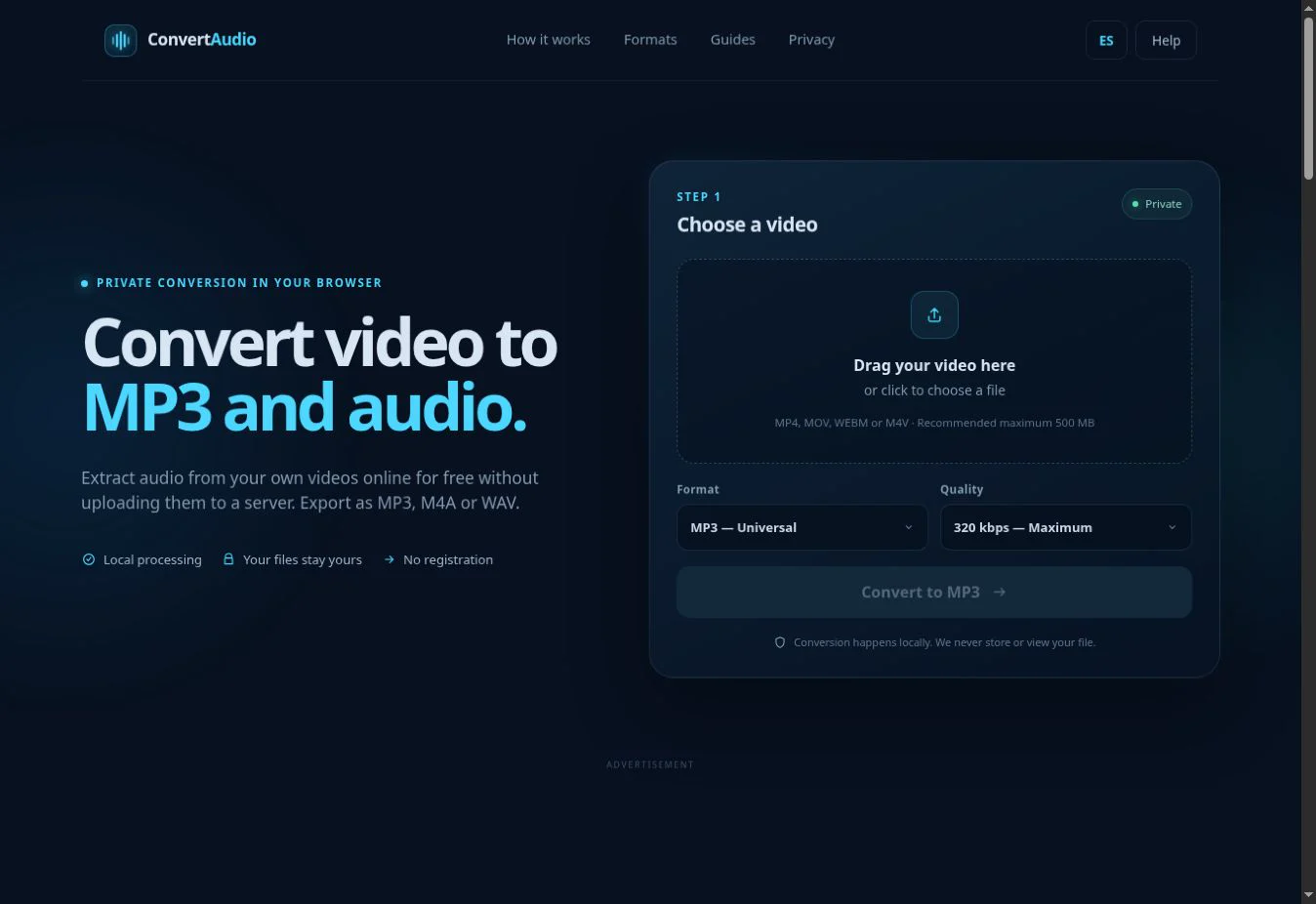
Open ConvertAudio in Safari, select the video from Photos or Files, choose MP3, M4A or WAV and tap Convert. When processing finishes, download the audio to the Files app.
A 6:30 video converted to MP3 at 192 kbps is approximately 9.4 MB. At 128 kbps it is about 6.2 MB; metadata can change either figure slightly.
Before you start: locate the video
If the video is in Photos, Safari will usually let you select it through the system picker. If your iOS version only shows Files, open the video in Photos, tap Share and choose Save to Files. You can then find it easily from the converter.
Check that your phone has free storage. Compressed MP3 or M4A audio will be much smaller than the video, but Safari needs temporary memory during processing.
How to extract audio in Safari
- Open the video-to-audio converter in Safari.
- Tap the upload area and select the file from Photos or Files.
- Choose MP3, M4A or WAV.
- For MP3 or M4A, choose a bitrate. For speech and general listening, 192 kbps is a sensible balance.
- Tap Convert and keep Safari in the foreground until it finishes.
- Tap Download and choose where to save the audio in Files.
MP3, M4A or WAV on iPhone?
MP3 for broad compatibility
The easiest choice for sharing, playing on different devices or attaching to an email.
M4A for efficient quality
Works particularly well in the Apple ecosystem and is efficient for music and speech.
WAV for editing
Avoids lossy compression but uses far more storage. Choose it when you plan to edit the sound.
192 kbps for balance
A practical quality-to-size ratio for most recordings.
Where does the downloaded MP3 go?
Safari saves downloads to the location configured on your iPhone, usually the Downloads folder in iCloud Drive or On My iPhone. Open Safari's downloads button or use Files and browse to Downloads. From there you can play, move, rename or share the MP3.
What to do if conversion does not finish
- The video is very large: try a shorter copy or free memory by closing other tabs and apps.
- Safari reloads the page: keep the screen awake and stay in Safari while it processes.
- The video is missing: save it to Files first and select it from there.
- The result is silent: play the original in Photos and confirm it contains audio.
- Unsupported file: some MP4 or MOV files contain less common codecs despite using a familiar extension.
Privacy and responsible use
ConvertAudio processes the file in Safari's memory. Your video is not uploaded to our servers, although the browser downloads the technical components needed for conversion. Use only videos you own, public-domain material or content you are authorized to process.
Extract audio on your iPhone
Open the converter in Safari and process the video directly on your device.
Open converter