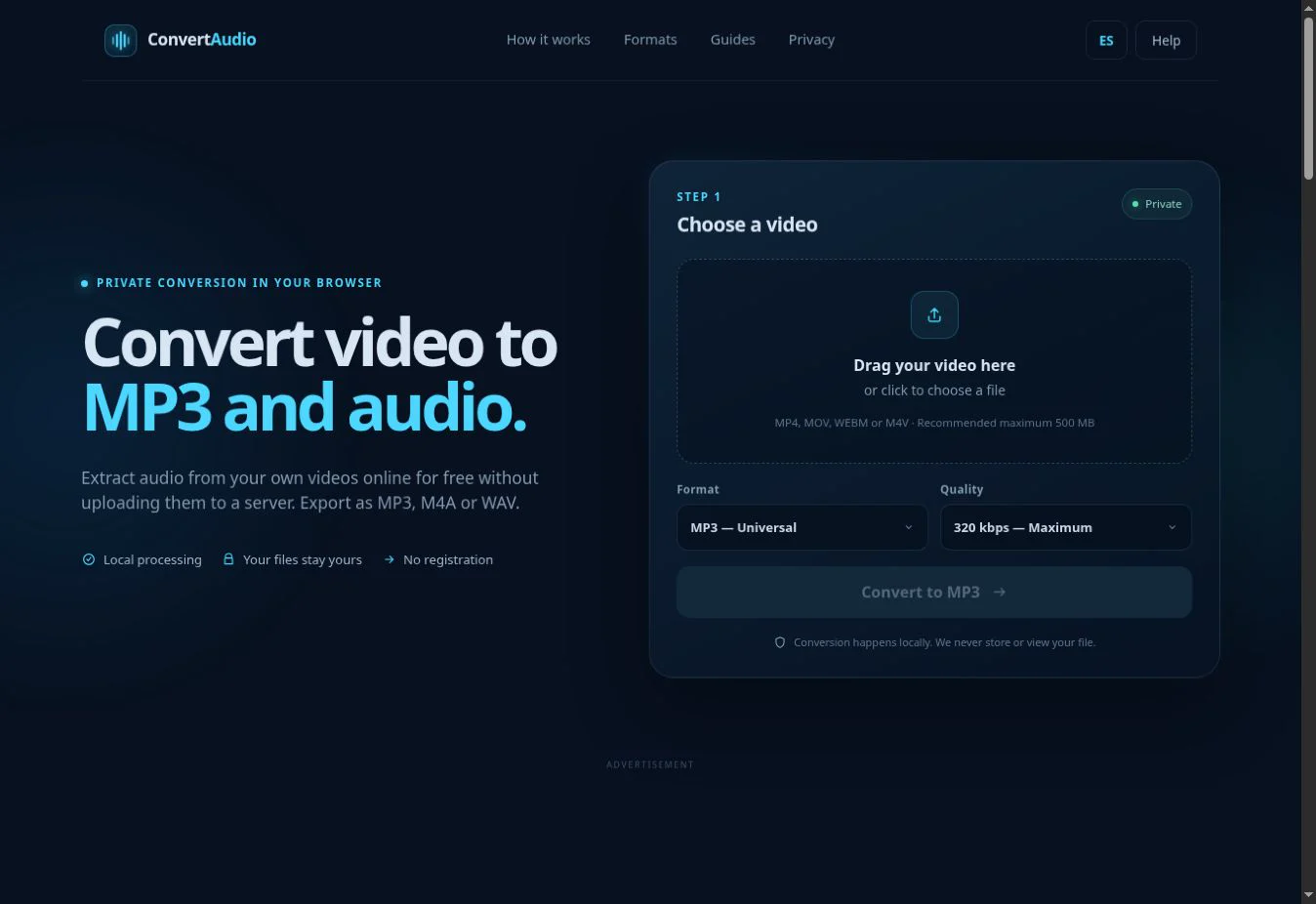
Find your screen recording, open it in ConvertAudio, choose MP3 and select the quality. For speech, tutorials or meetings, 128–192 kbps is usually enough. Convert the file, then download the result.
A 30-minute screen recording produces about 28.8 MB at 128 kbps or 43.2 MB at 192 kbps.
Where to find a screen recording
- Android: check Google Photos, Gallery, Movies or the Screen recordings folder.
- iPhone and iPad: recordings normally appear in Photos. If the picker does not show one, use Share and Save to Files.
- Windows: depending on the capture tool, look in Videos, Captures or the folder selected when saving.
- Mac: recordings usually appear on the Desktop or in the location selected in Screenshot settings.
Play the file first. This confirms that it finished saving and contains the sound you want to extract.
How to extract audio from a screen recording
- Open the video-to-MP3 converter.
- Select the recording from your device. Common containers include MP4, MOV and WEBM.
- Choose MP3 as the output. Use M4A for efficiency or WAV if you plan to edit the sound.
- Select a bitrate that matches the content.
- Tap Convert and keep the tab open during processing.
- Download the audio, then check the beginning, a middle section and the end.
Which MP3 quality should you choose?
128 kbps for speech
Suitable for explanations, classes, meetings and spoken notes when a smaller file matters.
192 kbps for general use
A practical balance for tutorials that combine voice, effects and some music.
256 or 320 kbps for music
Useful when the recording includes music and the source track has enough quality.
WAV for editing
Avoids another lossy compression step before noise reduction, cutting or mixing.
Choosing 320 kbps cannot improve a low-quality source; it only makes the result larger. See the full MP3 bitrate comparison if you are unsure.
Why does the screen recording have no audio?
- The microphone was off: some tools capture the screen without your voice by default.
- Internal audio was unavailable: the operating system or an app may block capture of certain sounds.
- The track is muted: check volume and play the original in another player.
- The file is incomplete: wait for it to finish saving or export it again.
- The codec is unsupported: a common extension does not guarantee the internal media can be decoded. Read the codec guide.
How to get a cleaner result
Trim empty time before recording or after downloading the audio, silence notifications during the capture, and use headphones if the microphone may pick up echo. For meetings and classes, also confirm that you have permission to record and reuse other people's voices.
Privacy and usage rights
Conversion runs locally, so the recording is not uploaded to ConvertAudio servers. Use your own recordings or files you are authorized to process. Do not extract or redistribute protected content without permission.
Convert your screen recording
Select the file and save its audio as MP3, M4A or WAV.
Open converter