A video may fail because it is incomplete or damaged, has no audio track, uses an unsupported codec, is too large for available memory, or is protected. Play the original, export it again and test a shorter copy before changing its extension.
An MP4 with H.264 video and AAC audio commonly works; another MP4 with an unsupported audio track can fail despite having the same extension.
Format, container and codec are not the same
The visible extension—such as .mp4, .mov or .webm—usually identifies the container. A container holds one or more tracks: video, audio, subtitles and metadata. Each track is compressed with a codec, which defines how its data is encoded and decoded.
Two MP4 files can be very different. One may combine H.264 video with AAC audio, while another uses HEVC video and a different audio track. Renaming file.mov to file.mp4 therefore does not convert the media or fix an unsupported codec.
Common containers and codecs
MP4 and M4V
Often contain H.264 or H.265/HEVC video and AAC audio, but other combinations are possible.
MOV
May contain H.264, HEVC, ProRes and several kinds of audio. The extension alone reveals little.
WEBM
Commonly pairs VP8, VP9 or AV1 video with Opus or Vorbis audio.
Audio tracks
AAC, MP3, Opus and PCM are common examples; exact support depends on the file and engine.
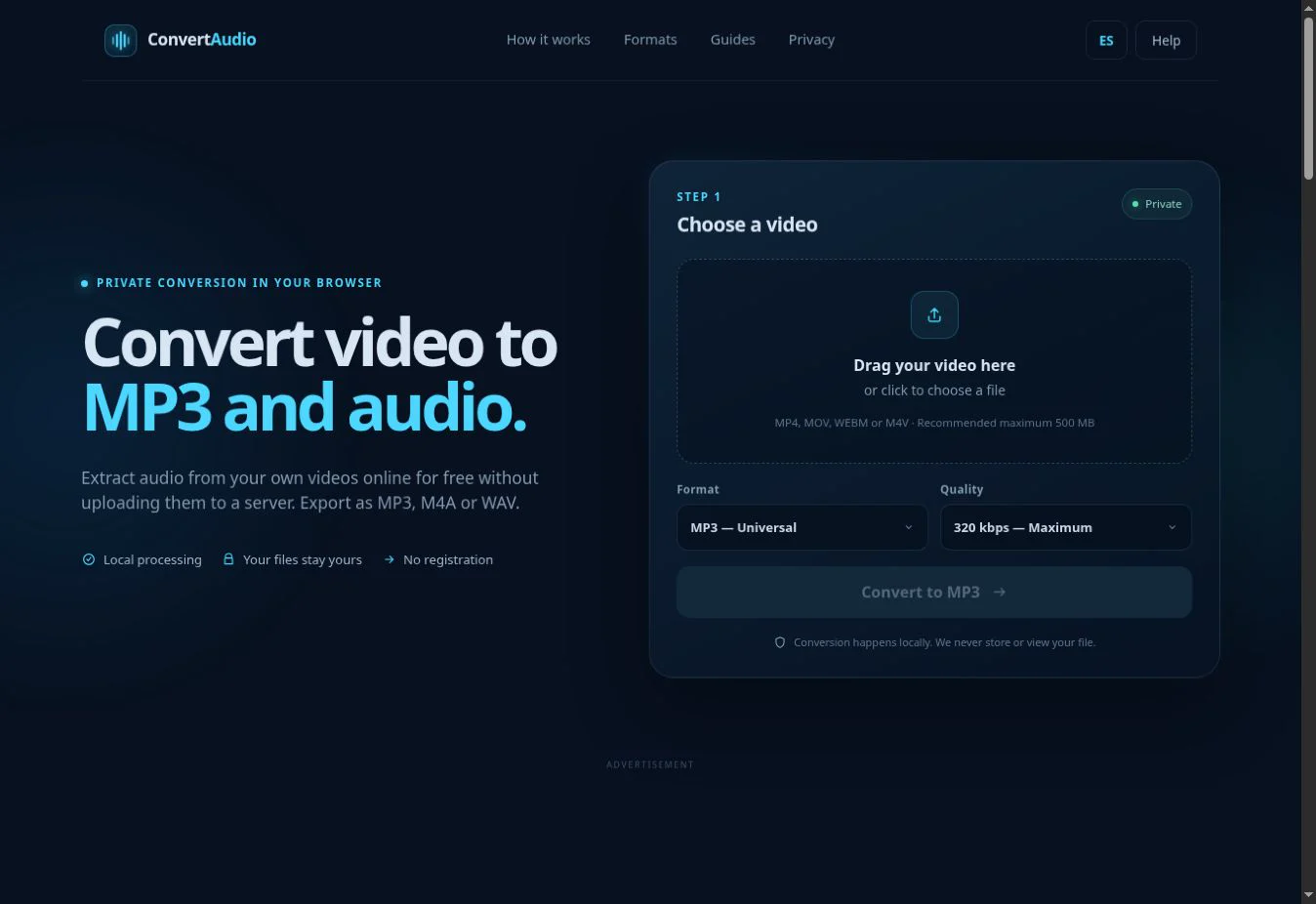
ConvertAudio lets you select MP4, MOV, WEBM and M4V, but final compatibility depends on the codecs and internal features. Not every file with one of these extensions can be guaranteed to work.
Common reasons a video fails
- Incomplete or damaged file: an interrupted download may retain its extension while losing indexes or required data.
- No audio track: some cameras, screen recordings and exports contain video only.
- Uncommon codec: the conversion engine may not include the required decoder.
- Insufficient memory: local processing means long or high-resolution videos can exceed the phone's or browser's resources.
- Protection or encryption: protected content should not be converted or circumvented.
- Unusual parameters: multiple tracks, variable audio or damaged metadata can prevent decoding.
How to diagnose a video that will not convert
- Play the full original. Check picture and sound, especially near the end.
- Confirm there is audio. Try headphones and another player if needed.
- Check the size. Make a short copy and test that first.
- Get the file again. Repeat the download or export it from the app that created it.
- Try another browser or device. A computer generally has more memory than a phone.
- Identify the codec. File properties or a trusted media inspector can reveal the internal tracks.
Safe fixes to try
- Create a new copy from the original app using a standard option such as MP4 with H.264 and AAC, when available.
- Trim the video or lower its resolution to reduce memory use.
- Use the original file rather than a forwarded or partially downloaded copy.
- Close other tabs and apps before converting a large video.
- If the media is protected, ask the rights holder for an authorized copy or use official export options.
If a common file still fails after these checks, record the error message, container, codec and size. Those details can help identify the cause without sharing the video itself.
Privacy and authorized use
ConvertAudio processes the file in the browser, so it is not sent to our servers. That privacy benefit does not change ownership rights: convert only your own videos, public-domain material or content you are authorized to use.
Try a compatible file
Select your own video and convert it locally to MP3, M4A or WAV.
Open converter