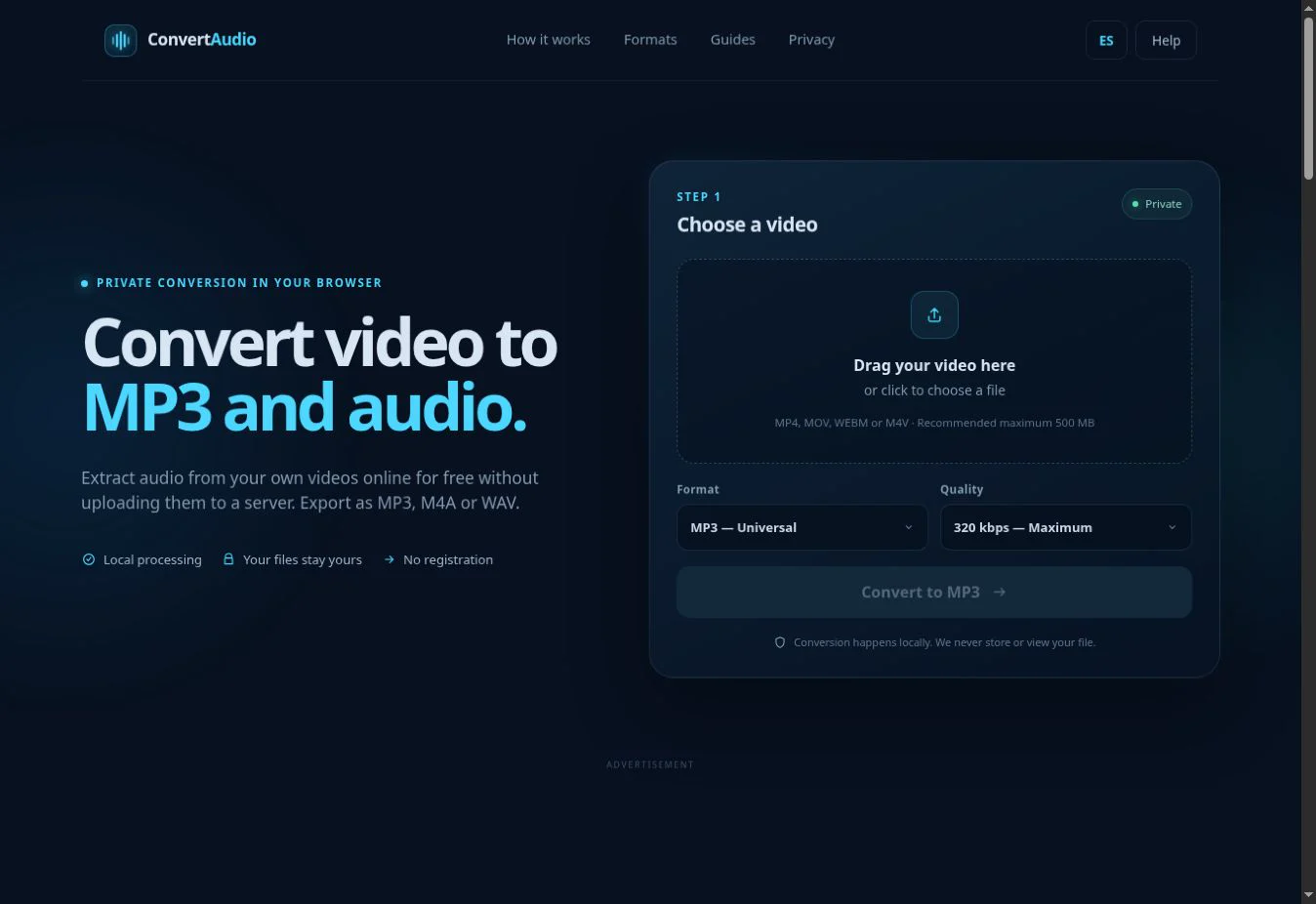
Open ConvertAudio in Chrome, select the video from Photos, Gallery or Files, choose MP3, M4A or WAV, and tap Convert. When it finishes, download the audio; it will usually appear in your phone's Downloads folder.
A 12-minute Android recording produces approximately 17.3 MB at 192 kbps MP3, whether the video picture is 1080p or 4K.
Before you start: find the video on Android
Menu names vary across Samsung, Xiaomi, Pixel and other phones, but the file is usually in Google Photos, Gallery or Files. Android may show Recent, Videos or storage locations when you open the converter's file picker. Select the actual downloaded file rather than a thumbnail or cloud link.
If the video arrived through a messaging app, save it to the device first. Play it before converting to confirm that it has sound and finished downloading. For a long video, make sure there is enough free storage and consider connecting the phone to power.
How to convert a video to MP3 on Android
- Open ConvertAudio in Chrome or another modern browser.
- Tap the upload area and choose the file from Photos, Gallery or Files.
- Select MP3 for broad compatibility, M4A for efficient storage, or WAV for later editing.
- Choose a bitrate. For speech, lessons and voice notes, 128 or 192 kbps is usually enough; consider 256 or 320 kbps for music.
- Tap Convert and keep the browser in the foreground while it works.
- Tap Download, then open the result from the notification or Downloads folder.
Which audio format should you choose?
MP3 for sharing
The most compatible choice for players, car systems, simple editors and messaging apps.
M4A for efficiency
Good quality at a compact size, with support on most modern phones.
WAV for editing
Produces a much larger file but avoids another lossy compression step before editing.
192 kbps for everyday use
A sensible quality-to-size balance for speech, personal videos and general listening.
Where is the downloaded MP3 on Android?
Most browsers store it in Downloads or Download. Open it from the download notification, Chrome's Downloads screen or the Files app. If you cannot find it, check the browser's download permission and search for the original filename with a .mp3, .m4a or .wav extension.
What to do when audio extraction fails
- Conversion stops: close other apps, free memory and test a shorter video.
- Android closes the browser: keep the screen awake and disable battery saving for Chrome during processing.
- The video is missing: save it to Files or Downloads, then select it there.
- The result is silent: confirm that the original contains an audio track and is not muted.
- The extension looks right but fails: MP4 and MOV are containers; the internal codec may be unsupported. Read the formats and codecs guide.
Privacy and responsible use
ConvertAudio processes the file in browser memory. It does not upload your video to ConvertAudio servers, although Chrome downloads the technical components needed to run the converter. Use only your own recordings, public-domain material or files you are authorized to process.
Extract audio on Android
Select your own video and convert it directly in the browser.
Open converter